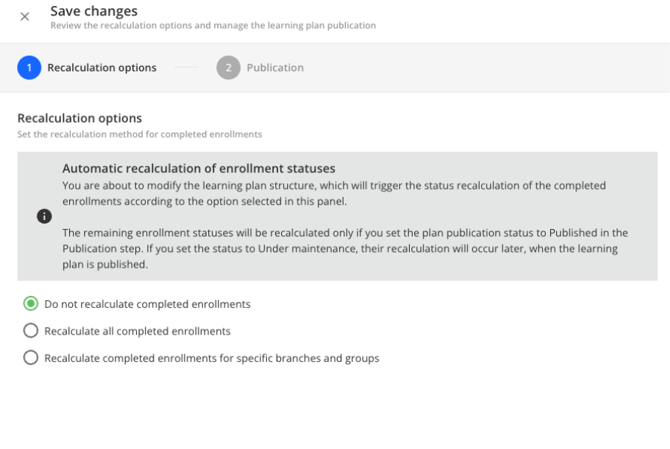
Note: Adding courses to LPs can impact the enrolment status; be careful when choosing Recalculation Options (part 3).
Overview
- Add multiple courses to a single learning plan
- Open the Learning Plan
- Assign Courses
- Add one course to multiple learning plans
- Open the Course
- Assign to Learning Plan
- Recalculation Options
- Add multiple courses to one learning plan (Power Users/Managers)
- Open the learning plan
- In the left-hand menu, click Content and delivery (📁) → Learning plans → select the LP.
- Assign courses
- Click the green ➕ button (top right) → Assign courses.
- Select the course(s) you want to add.
- Click the green “Assign” button.
- Open the learning plan
2. Add one course to multiple learning plans (Power Users/Managers)
-
- Open the course
- "In the left-hand menu, click Content and delivery (📁) → Courses → select the course.
- Assign to learning plans
- Click the green ➕ button (top right) → Assign to Learning Plans.
- Select the learning plan(s) to add this course to.
- Click the green “Confirm” button.
- Open the course
3. Recalculation Options: When you add a course to a Learning Plan, we’ll be prompted to select Recalculation Options which will then determine how this addition will impact the enrollment status of learners. We’ll be choosing from the list below:
-
-
Do not recalculate completed enrollments: If we want the enrollment status to remain unaffected.
- Recalculate all completed enrollments: It will recalculate completed enrollments with the new course(s) added.
- Recalculate completed enrollments for specific branches and groups: By choosing this option you can recalculate enrollments only for specific Branches or Groups
-