
This guide explains how to provide Allara Global to connect your integration with Tanda. You will need to create a dedicated API user and generate an access token that allows the integration to securely exchange data between Tanda and the Allara Global LMS.
Estimated setup time: Approximately 5 minutes
Before you begin
- You must have Administrator access in Tanda.
- The integration requires a dedicated administrator account.
- The access token can only be viewed once when it is created.
Step 1. Create a dedicated API user
Create a new administrator account in Tanda called AG API User (Do not delete). This account is used solely for the integration and should not be deleted or used for day-to-day administration.
Store the account credentials securely in accordance with your organisation's security policies so future administrators can manage the integration if required.
Step 2. Create an access token
Sign in to Tanda using the AG API User (Do not delete) account.
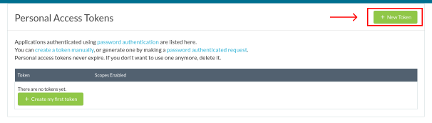
Navigate to: https://my.tanda.co/api/oauth/access_tokens
Click the "+ New Token" button in the top right.
Add a Label for the token: Allara Global Integration
Grant the following scopes:
- qualification
- department
- role
- me
- personal
- user
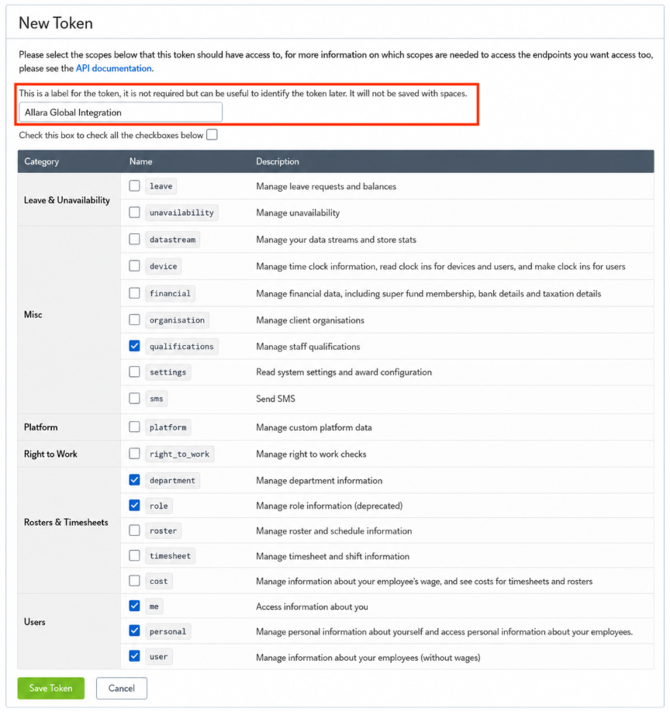
Once you have selected the scopes, click "Save Token".
When you click "Save Token" you will be shown a confirmation screen that provides a Token ID.
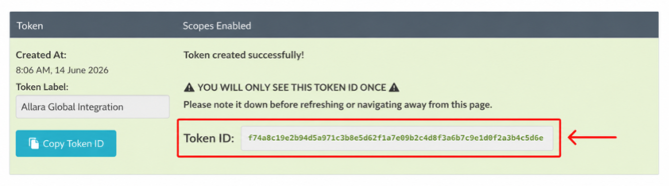
IMPORTANT: The Token ID will only be shown once. Before closing the confirmation screen, copy the token and save it somewhere secure. If it is lost, you will need to generate a new token.
Step 3. Share the token securely
To securely share your Token ID with Allara Global, please use OneTime Secret.
IMPORTANT: Please do not send the token via email, as it provides access to your Tanda data.
Navigate to https://onetimesecret.com
Paste your Token ID into the secret message field. Select Create Link.
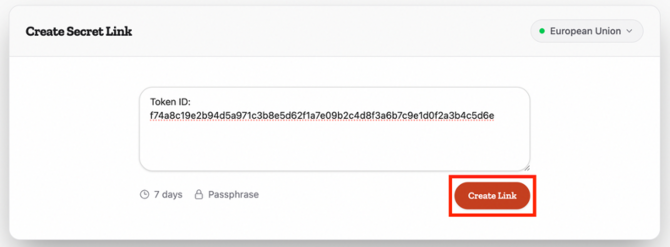
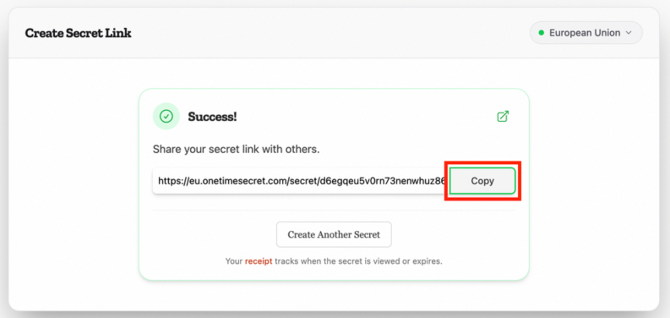
Copy the generated OneTime Secret link.
Email the OneTime Secret link to your Allara Global onboarding contact.