
Creating an access token
To create an access token, make sure you are logged in to Workforce as an admin, then go to https://my.workforce.com/api/oauth/access_tokens and add a new token.
The token must have the following scopes: qualification, department, role, me, personal, user. Once they are selected, click “Save Token”.
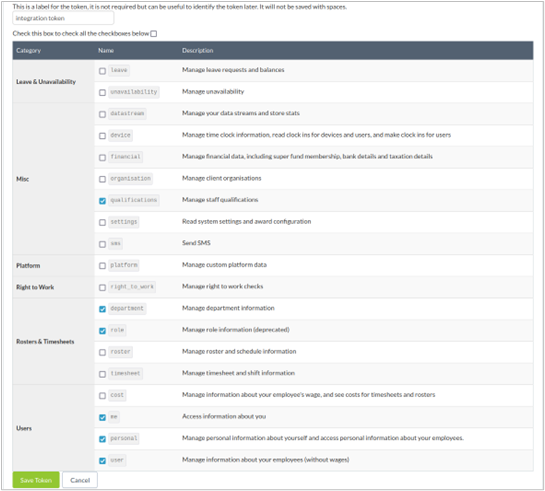
Figure 1 shows the correct settings for creating an access token.
IMPORTANT: The access token will only be displayed once. After pressing OK, it will never be shown again. Make sure it is copied or saved before closing the box.
Share the token securely
To securely share your Token ID with Allara Global, please use OneTime Secret.
IMPORTANT: Please do not send the token via email, as it provides access to your Workforce data.
Navigate to https://eu.onetimesecret.com
Paste your Token ID into the secret message field. Select Create Link.
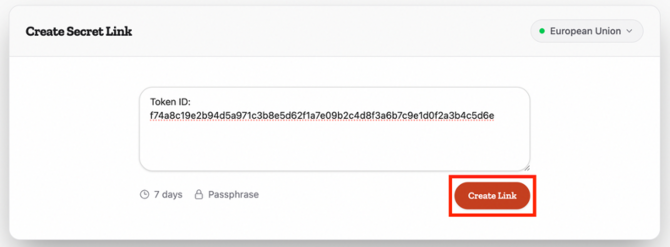
Copy the generated OneTime Secret link.
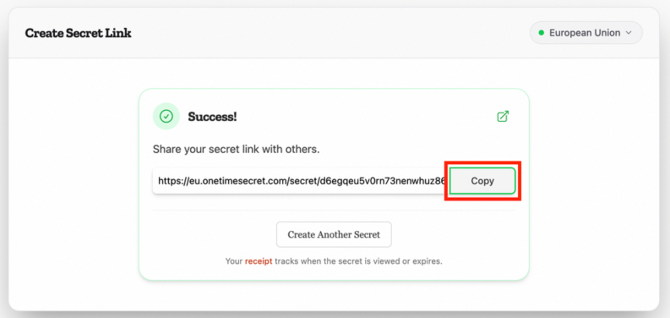
Email the OneTime Secret link to your Allara Global onboarding contact.